> ## Documentation Index
> Fetch the complete documentation index at: https://docs.highmark.it/llms.txt
> Use this file to discover all available pages before exploring further.
# How to Clear Browser Cache
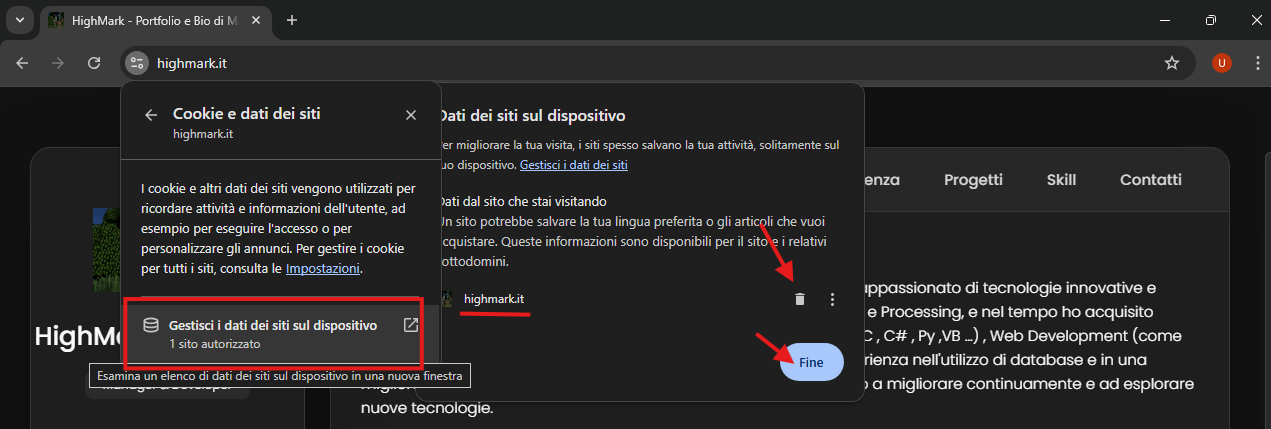
> In this guide, I will explain how to clear the browser cache or specific site data to resolve loading issues.
Clearing the cache deletes temporary data that speeds up page loading. After clearing it, some sites might load slower the first time. Make sure not to delete other important data like passwords or history unless necessary.
### **What is Cache?**
Cache is a temporary memory that saves web page elements (images, CSS files, JavaScript) to speed up loading on subsequent visits. However, sometimes it can cause issues like outdated pages or display errors. Clearing the cache resolves these issues.
### **How to Clear Cache on All Sites**
#### **1. Google Chrome**
1. Open Chrome and click the **three dots** in the top right.
2. Go to **Settings** > **Privacy and security** > **Delete browsing data**.
3. Select **Cached images and files** (deselect other items if you don't want to delete them).
4. Click **Delete data**.
#### **2. Mozilla Firefox**
1. Open Firefox and click the **three lines** in the top right.
2. Go to **Settings** > **Privacy & Security** > **Cookies and Site Data**.
3. Click **Clear Data** and select only **Cached Web Content**.
4. Confirm by clicking **Clear**.
#### **3. Microsoft Edge**
1. Open Edge and click the **three dots** in the top right.
2. Go to **Settings** > **Privacy, search, and services**.
3. Under **Clear browsing data**, click **Choose what to clear**.
4. Select **Cached images and files** and click **Clear now**.
 #### **4. Safari (Mac)**
1. Open Safari and go to the **Safari** menu > **Preferences**.
2. Click the **Advanced** tab and enable **Show Develop menu in menu bar**.
3. Go to **Develop** in the menu bar and select **Empty Caches**.
### **How to Clear Cache for a Specific Site**
#### **Google Chrome**
1. Open the site you want to clear the cache for.
2. Right-click on the page and select **Inspect** (or press `Ctrl+Shift+I` on Windows, `Cmd+Option+I` on Mac).
3. With Developer Tools open, **right-click the refresh button** (top left of the browser).
4. Select **Empty Cache and Hard Reload**.
#### **Mozilla Firefox**
1. Open the site and press `Ctrl+Shift+I` (or `Cmd+Option+I` on Mac) to open Developer Tools.
2. Go to the **Storage** tab.
3. In the left sidebar, select **Cache** and right-click on the site.
4. Select **Delete All**.
#### **Microsoft Edge**
1. Open the site and press `F12` to open Developer Tools.
2. Go to the **Network** tab.
3. Click **Clear browser cache** (trash icon at the top).
#### **Safari (Mac)**
1. Enable Developer Tools as described above.
2. Open the site and go to **Develop** > **Empty Caches**.
3. Reload the page.
Guide created by HighMark - All information and contacts on my [official website: Highmark.it](https://highmark.it/)
#### **4. Safari (Mac)**
1. Open Safari and go to the **Safari** menu > **Preferences**.
2. Click the **Advanced** tab and enable **Show Develop menu in menu bar**.
3. Go to **Develop** in the menu bar and select **Empty Caches**.
### **How to Clear Cache for a Specific Site**
#### **Google Chrome**
1. Open the site you want to clear the cache for.
2. Right-click on the page and select **Inspect** (or press `Ctrl+Shift+I` on Windows, `Cmd+Option+I` on Mac).
3. With Developer Tools open, **right-click the refresh button** (top left of the browser).
4. Select **Empty Cache and Hard Reload**.
#### **Mozilla Firefox**
1. Open the site and press `Ctrl+Shift+I` (or `Cmd+Option+I` on Mac) to open Developer Tools.
2. Go to the **Storage** tab.
3. In the left sidebar, select **Cache** and right-click on the site.
4. Select **Delete All**.
#### **Microsoft Edge**
1. Open the site and press `F12` to open Developer Tools.
2. Go to the **Network** tab.
3. Click **Clear browser cache** (trash icon at the top).
#### **Safari (Mac)**
1. Enable Developer Tools as described above.
2. Open the site and go to **Develop** > **Empty Caches**.
3. Reload the page.
Guide created by HighMark - All information and contacts on my [official website: Highmark.it](https://highmark.it/)